
Ключ установки Microsoft Office после активации продукта продолжает хранится в реестре системы. Для защиты ключ продукта хранится не в открытом, а в шифрованном с помощью кодировки Base64 виде. Этот метод кодировки не является стойким, поэтому не составляет труда извлечь его с помощью простого скрипта (аналогичную методику мы рассматривали в статье, описывающей извлечения ключа установки Windows). В этой статье мы приведем как с помощью PowerShell и vbs скриптов без использования сторонних утилит получить код активации уже установленной копии MS Office.
Данные скрипты удобно использовать при утрате документов или наклеек с ключами установки Microsoft Office.
Сначала рассмотрим скрипт получения ключа на PowerShell
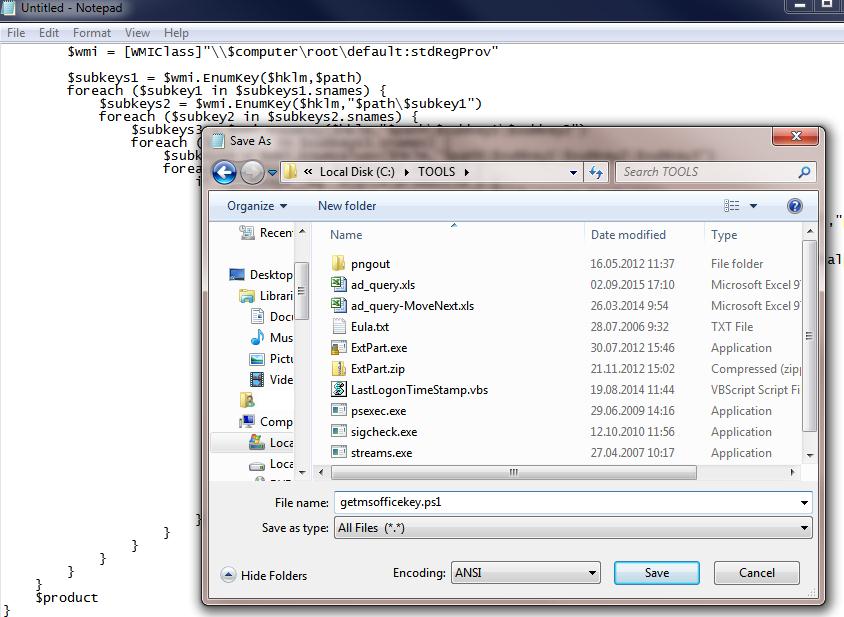
- Создайте новый текстовый файл (в том же notepad.exe)
- Скопируйте в него следующий код:
function Get-MSOfficeProductKey { param( [string[]]$computerName = "." ) $product = @() $hklm = 2147483650 $path = "SOFTWAREMicrosoftOffice" foreach ($computer in $computerName) { $wmi = [WMIClass]"\$computerrootdefault:stdRegProv" $subkeys1 = $wmi.EnumKey($hklm,$path) foreach ($subkey1 in $subkeys1.snames) { $subkeys2 = $wmi.EnumKey($hklm,"$path$subkey1") foreach ($subkey2 in $subkeys2.snames) { $subkeys3 = $wmi.EnumKey($hklm,"$path$subkey1$subkey2") foreach ($subkey3 in $subkeys3.snames) { $subkeys4 = $wmi.EnumValues($hklm,"$path$subkey1$subkey2$subkey3") foreach ($subkey4 in $subkeys4.snames) { if ($subkey4 -eq "digitalproductid") { $temp = "" | select ComputerName,ProductName,ProductKey $temp.ComputerName = $computer $productName = $wmi.GetStringValue($hklm,"$path$subkey1$subkey2$subkey3","productname") $temp.ProductName = $productName.sValue $data = $wmi.GetBinaryValue($hklm,"$path$subkey1$subkey2$subkey3","digitalproductid") $valueData = ($data.uValue)[52..66] # decrypt base24 encoded binary data $productKey = "" $chars = "BCDFGHJKMPQRTVWXY2346789" for ($i = 24; $i -ge 0; $i--) { $r = 0 for ($j = 14; $j -ge 0; $j--) { $r = ($r * 256) -bxor $valueData[$j] $valueData[$j] = [math]::Truncate($r / 24) $r = $r % 24 } $productKey = $chars[$r] + $productKey if (($i % 5) -eq 0 -and $i -ne 0) { $productKey = "-" + $productKey } } $temp.ProductKey = $productKey $product += $temp } } } } } } $product } - Сохраните файл с расширением .ps1
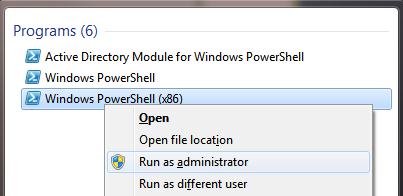
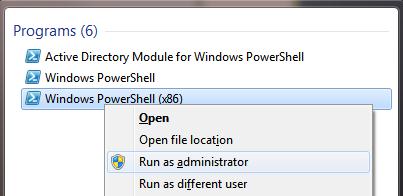
- В зависимости от версии MS Office: если используется 32 битная версия Office, запустите с правами администратора 32-битную консоль PowerShell. В случае использования 64 битного Office, запускайте 64 битную консоль PowerShell.
Советы. Office 2007 и ниже бывают только 32 разрядные. Office 2010, 2013 и 2016 – бывают как 32 так и 64 разрядные. На 32 разрядной Windows нельзя установить 64 битную версию Office.
- В нашем примере на 64 битной Windows установлена 32 битная версия Office, поэтому запускаем Windows PoweShell (x86).
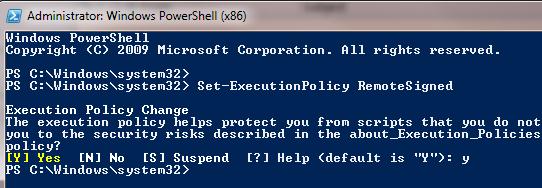
- Разрешим локальный запуск неподписанных скриптов:
Set-ExecutionPolicy RemoteSignedНа запрос жмем Y и Enter.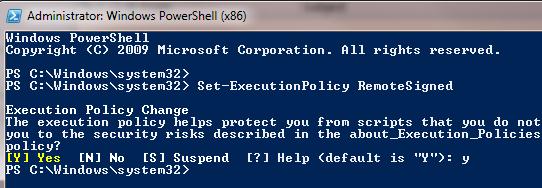
- Импортируем ранее сохраненный скрипт командой и вызовем функцию из него:
Import-Module C:Toolsgetmsofficekey.ps1; Get-MSOfficeProductKey - На экран должны быть выведена табличка, содержащая информацию о всех установленных версиях Office. В поле ProductName будет содержаться имя установленного продукта, а в поле ProductKey – ключ активации.


Готовый Powershell скрипт можно скачать тут: getmsofficekey-posh.zip
Аналогичный скрипт для получения ProducId и ключей MS Office на Vbscript
Const HKLM = &H80000002 Computer = "." Set objWMIService = GetObject("winmgmts:\" & Computer & "rootcimv2") Set Obj = objWMIService.ExecQuery ("Select * from Win32_OperatingSystem") dim InsDate For Each item in Obj InsDate = item.InstallDate ' Gather Operating System Information Caption = Item.Caption OSArchitecture = Item.OSArchitecture CSDVersion = Item.CSDVersion Version = Item.Version Next dim NewDate NewDate = mid(InsDate,9,2) & ":" & mid(InsDate,11,2) & ":" & mid(InsDate,13,2) NewDate = NewDate & " " & mid(InsDate,7,2) & "/" & mid(InsDate,5,2) & "/" & mid(InsDate,1,4) wscript.echo 'vbCrLf & "Office Keys" & vbCrLf QueryOfficeProductKeys() Function DecodeProductKey(arrKey, intKeyOffset) If Not IsArray(arrKey) Then Exit Function intIsWin8 = BitShiftRight(arrKey(intKeyOffset + 14),3) And 1 arrKey(intKeyOffset + 14) = arrKey(intKeyOffset + 14) And 247 Or BitShiftLeft(intIsWin8 And 2,2) i = 24 strChars = "BCDFGHJKMPQRTVWXY2346789" strKeyOutput = "" While i > -1 intCur = 0 intX = 14 While intX > -1 intCur = BitShiftLeft(intCur,8) intCur = arrKey(intX + intKeyOffset) + intCur arrKey(intX + intKeyOffset) = Int(intCur / 24) intCur = intCur Mod 24 intX = intX - 1 Wend i = i - 1 strKeyOutput = Mid(strChars,intCur + 1,1) & strKeyOutput intLast = intCur Wend If intIsWin8 = 1 Then strKeyOutput = Mid(strKeyOutput,2,intLast) & "N" & Right(strKeyOutput,Len(strKeyOutput) - (intLast + 1)) End If strKeyGUIDOutput = Mid(strKeyOutput,1,5) & "-" & Mid(strKeyOutput,6,5) & "-" & Mid(strKeyOutput,11,5) & "-" & Mid(strKeyOutput,16,5) & "-" & Mid(strKeyOutput,21,5) DecodeProductKey = strKeyGUIDOutput End Function Function RegReadBinary(strRegPath,strRegValue) Set objReg = GetObject("winmgmts:{impersonationLevel=impersonate}!\.rootdefault:StdRegProv") objReg.GetBinaryValue HKLM,strRegPath,strRegValue,arrRegBinaryData RegReadBinary = arrRegBinaryData Set objReg = Nothing End Function Function BitShiftLeft(intValue,intShift) BitShiftLeft = intValue * 2 ^ intShift End Function Function BitShiftRight(intValue,intShift) BitShiftRight = Int(intValue / (2 ^ intShift)) End Function Function QueryOfficeProductKeys() strBaseKey = "SOFTWARE" strOfficeKey = strBaseKey & "MicrosoftOffice" Set objReg = GetObject("winmgmts:{impersonationLevel=impersonate}!\.rootdefault:StdRegProv") objReg.EnumKey HKLM, strOfficeKey, arrOfficeVersionSubKeys intProductCount = 1 If IsArray(arrOfficeVersionSubKeys) Then For Each strOfficeVersionKey In arrOfficeVersionSubKeys Select Case strOfficeVersionKey Case "11.0" CheckOfficeKey strOfficeKey & "11.0Registration",52,intProductCount Case "12.0" CheckOfficeKey strOfficeKey & "12.0Registration",52,intProductCount Case "14.0" CheckOfficeKey strOfficeKey & "14.0Registration",808,intProductCount Case "15.0" CheckOfficeKey strOfficeKey & "15.0Registration",808,intProductCount End Select Next End If strBaseKey = "SOFTWAREWow6432Node" strOfficeKey = strBaseKey & "MicrosoftOffice" Set objReg = GetObject("winmgmts:{impersonationLevel=impersonate}!\.rootdefault:StdRegProv") objReg.EnumKey HKLM, strOfficeKey, arrOfficeVersionSubKeys intProductCount = 1 If IsArray(arrOfficeVersionSubKeys) Then For Each strOfficeVersionKey In arrOfficeVersionSubKeys Select Case strOfficeVersionKey Case "11.0" CheckOfficeKey strOfficeKey & "11.0Registration",52,intProductCount Case "12.0" CheckOfficeKey strOfficeKey & "12.0Registration",52,intProductCount Case "14.0" CheckOfficeKey strOfficeKey & "14.0Registration",808,intProductCount Case "15.0" CheckOfficeKey strOfficeKey & "15.0Registration",808,intProductCount End Select Next End If End Function 'Office Product Key Sub CheckOfficeKey(strRegPath,intKeyOffset,intProductCount) Set objReg = GetObject("winmgmts:{impersonationLevel=impersonate}!\.rootdefault:StdRegProv") objReg.EnumKey HKLM, strRegPath, arrOfficeRegistrations If IsArray(arrOfficeRegistrations) Then For Each strOfficeRegistration In arrOfficeRegistrations objReg.GetStringValue HKLM,strRegPath & "" & strOfficeRegistration,"ConvertToEdition",strOfficeEdition objReg.GetBinaryValue HKLM,strRegPath & "" & strOfficeRegistration,"DigitalProductID",arrProductID If strOfficeEdition <> "" And IsArray(arrProductID) Then WriteData "Product", strOfficeEdition WriteData "Key", DecodeProductKey(arrProductID,intKeyOffset) & vbCrLf intProductCount = intProductCount + 1 End If Next End If End Sub Function RegReadBinary(strRegPath,strRegValue) Set objReg = GetObject("winmgmts:{impersonationLevel=impersonate}!\.rootdefault:StdRegProv") objReg.GetBinaryValue HKLM,strRegPath,strRegValue,arrRegBinaryData RegReadBinary = arrRegBinaryData Set objReg = Nothing End Function Function OsArch() Set objShell = WScript.CreateObject("WScript.Shell") If objShell.ExpandEnvironmentStrings("%ProgramFiles(x86)%") = "%ProgramFiles(x86)%" Then OsArch = "x86" Else OsArch = "x64" End If Set objShell = Nothing End Function Sub WriteData(strProperty,strValue) WScript.Echo strProperty & ": " & Trim(strValue) End Sub
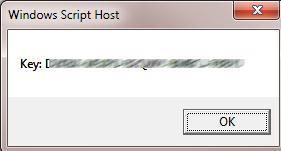 Готовый файл *.vbs файл: get-office-keys-vbs.zip
Проверим полученный ключ с помощью стандартной функции, позволяющей отобразить последние 5 символов ключа. Для 32 битного Офиса на 64 битной Windows команда такая:
cscript "C:Program Files (x86)Microsoft OfficeOffice14OSPP.VBS" /dstatus
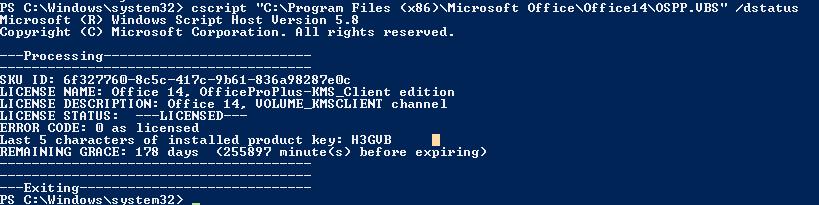 Часть ключа должна совпадать с полученными ранее данными.
SKU ID: 6f327760-8c5c-417c-9b61-836a98287e0c
LICENSE NAME: Office 14, OfficeProPlus-KMS_Client edition
LICENSE DESCRIPTION: Office 14, VOLUME_KMSCLIENT channel
LICENSE STATUS: ---LICENSED---
ERROR CODE: 0 as licensed
Last 5 characters of installed product key: H3GVB
REMAINING GRACE: 178 days (255897 minute(s) before expiring)
Добавить комментарий
Чтобы оставить комментарий, войдите по коду из письма.